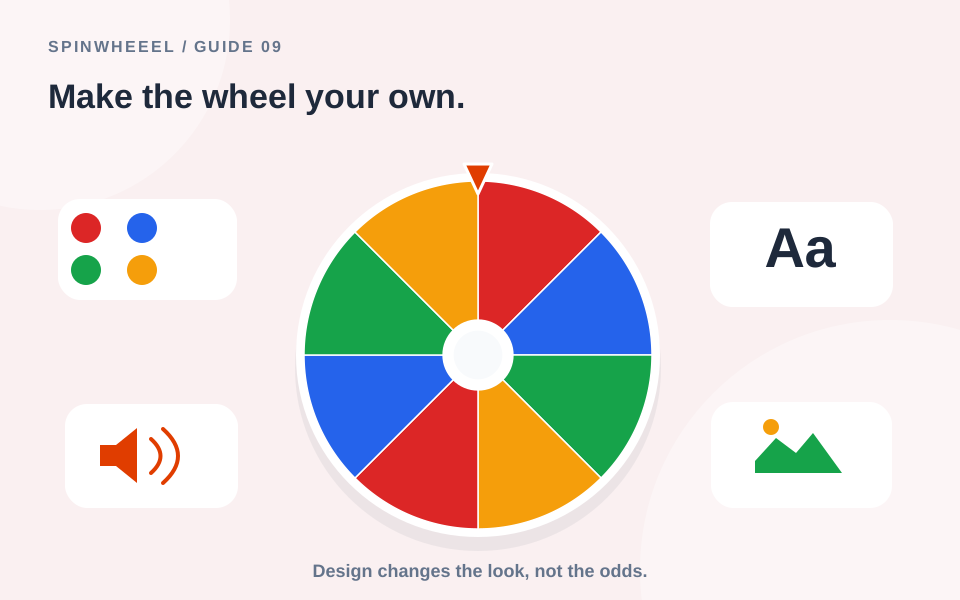
Use the Custom, Sound, and Skin tabs in Settings to change the wheel’s presentation. Start with a main design or a palette from the gallery, then adjust the controls that matter for your group. Changing appearance does not change the entry weights.
A custom wheel spinner should be easy to read as well as enjoyable to use. Begin with the setting, the screen size, and the audience. A quiet study group and a party may need the same random selection with very different sound and celebration choices.
Choose a Wheel Design or Color Palette
The five main designs are Classic, Rainbow, Pastel, Midnight, and Monochrome. Classic uses the familiar red, blue, green, and amber wheel colors. The gallery adds grouped palettes inspired by nature, the coast, bright celebrations, and seasonal combinations.
Click a design to apply it to the wheel on the homepage. Your entry list and weights stay the same. Use Random style if you want a quick palette suggestion, or edit individual palette swatches in the Skin tab.
Check Contrast and Label Length
A pale slice needs dark text, while a dark slice usually needs light text. Automatic text contrast handles the default display. If you choose your own text color, check it against every slice. Short labels leave more room than full sentences, especially on phones or wheels with many entries.
Use the Custom Settings Tab
Display duplicate names controls repeated labels, not repeated eligibility. Spin slowly adds a gentler start. Blind mode hides labels while the wheel turns. Match pointer with segment color changes the pointer’s appearance as sections pass beneath it.
The spin-duration slider runs from 1 to 60 seconds. Use the maximum-labels slider to limit how much text appears on a crowded wheel. All eligible entries retain their configured chances, even when some labels are hidden. Reduced-motion preferences use a short animation instead of an extended spin.
Remove Winners for a Sequence of Picks
Auto-remove winner takes the chosen row out of the next draw. Leave it off for independent choices where repeats are allowed. The winner-removal guide explains what happens when the same person has several rows.
Choose a Winner Display Mode
Popup opens a centered result window. On-Wheel places the selected label over the wheel area. Banner shows a wider result strip beneath the wheel. Each mode provides the same chosen label; select the one that is easiest to see in your presentation.
Choose a Confetti Effect
The celebration options are Default, Side Cannons, Paper, Classic, Shapes, Stars, Hearts, Fireworks, and None. These are visual effects after the result. Choose None for a quieter display; reduced-motion settings also suppress moving celebrations.
Choose from Three Wheel Sound Styles
The available styles are Roulette, Soft Pop, and Twinkle. Preview a style before using it with a group. You can choose a style for pointer ticks and a style for the winner chime from those same three options.
Pointer ticks and Winner chime each have an independent switch. Spinning ambience adds a low background tone during the animation. Mute all sound overrides those choices, and Volume controls the overall level. Preview buttons respect the volume control but let you hear the selected style even while the general sound switch is muted.
When You Cannot Hear the Preview
Check your device volume and use the preview button directly. Browsers can require a user interaction before audio starts. The result remains visible, so the wheel never depends on sound alone.
Customize Wheel Skin, Texture, and Pointer
The Skin tab contains your palette colors, texture, page background, font, text color, and pointer shape. Textures include subtle grain, dots, stripes, grid, and other patterns. Use a light texture when text readability matters more than decoration.
Classic, Diamond, and Wedge pointer shapes all identify the same stopping position. Background themes change the wheel workspace rather than the content of the list. Fonts and text color affect the labels without changing their spelling or weights.
Add a Center Image
Upload a PNG, JPEG, or WebP image up to 250 KB for the wheel center. A square image with its important detail in the middle works best because the center is circular. The image is stored in a local save or exported wheel file, but is left out of share links to keep them compact.
Save a Design You Want to Reuse
Save the wheel after changing its style, and give it a title that identifies the activity. A local save includes the configuration and optional center image. Export a backup when you want to retain the setup independently of browser data.
Read the save-and-share guide before moving a design to another device. For mobile layout advice, see the iPhone browser walkthrough.
Do Colors, Sounds, or Spin Speed Change the Winner?
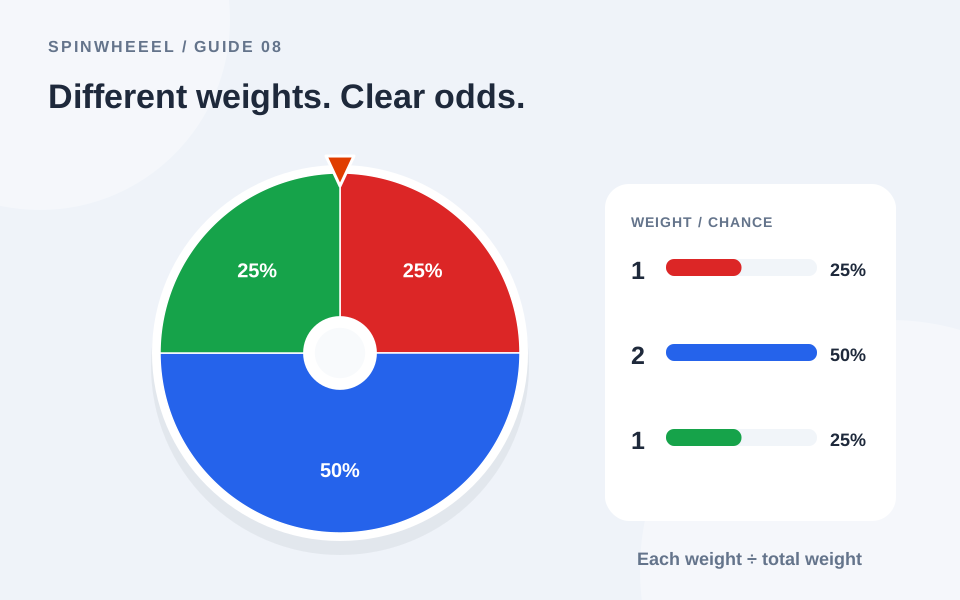
No. These presentation choices leave the selection weights unchanged. Edit a weight or change the actual entry list when you intend to change the odds. Our weighted-wheel explanation shows exactly how those changes work.
Build a Readable Wheel Style for Your Setting
Start with a sample wheel of six short labels. Choose a main palette, check the text against each slice, and then add one presentation change at a time. This makes it easier to notice whether a texture, custom text color, or center image reduces readability. Inspect the result window as well as the wheel itself.
For a classroom display, try a restrained palette, minimal texture, a short animation, and muted sound. For a game night, brighter colors and a winner chime may suit the room. These are starting points to test with your audience, not requirements for using the tool. Keep the result readable whichever style you choose.
Test the Finished Design Before Saving
View the wheel on the screen you will actually use, especially if you prepared it on a laptop and plan to present from a phone. Run a sample spin and check the selected name, pointer, and celebration together. Save the completed setup under a recognizable title so you can return to it without repeating every adjustment.
QUICK ANSWERS
Spin Wheel Customization Questions
Can I change the design after adding names?
Yes. Switching a palette leaves your entries and their weights in place. Check label contrast after changing colors, then save the wheel if you want to keep the new appearance.
Will a center image appear in a share link?
No. Share links leave out uploaded center images. Export a wheel file when you need to move a setup that includes your image.
Can I turn off celebrations without muting the wheel?
Yes. Choose None for the confetti effect and adjust the sound switches separately. Visual celebrations and audio have independent controls.
Put it into practice.
Start with a few sample entries, check your settings, and make the wheel your own.
Open the wheel