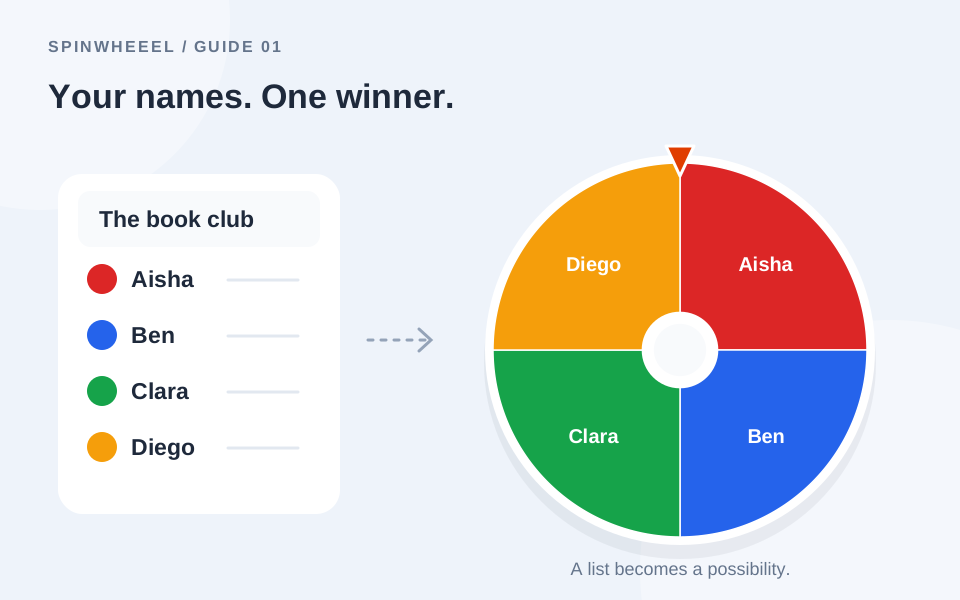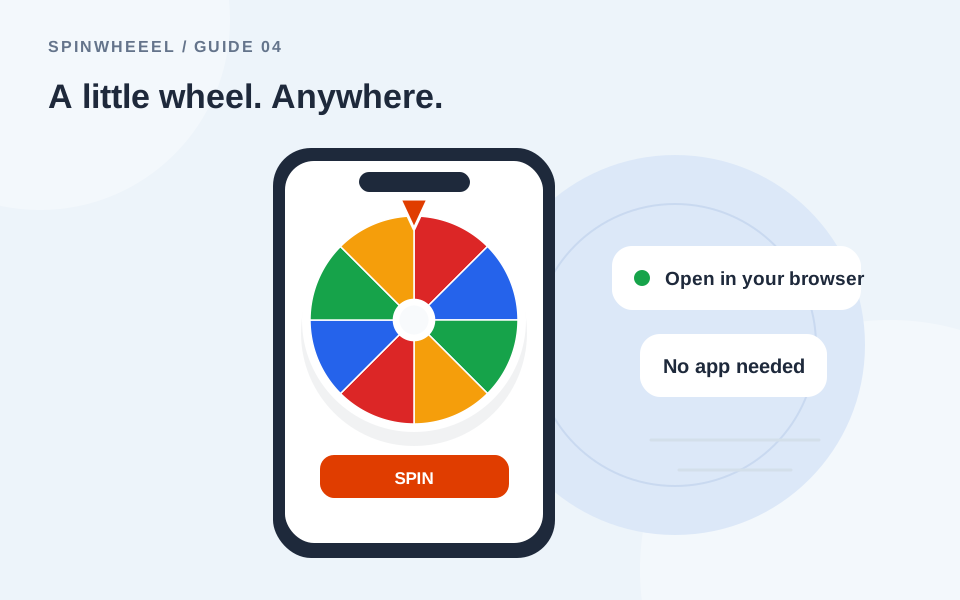
You can use the SpinWheeel.online spin wheel on iPhone directly in a browser. Open the homepage, scroll to Entries beneath the wheel, replace the sample list, and tap Spin the wheel. You do not need to download a separate app or create an account.
Mobile use is convenient for a small group, a classroom corner, or an everyday shortlist. The important differences are the smaller display, touch controls, and where the browser keeps your saved lists.
Open the Spin Wheel in Your iPhone Browser
Visit the free online wheel spinner in Safari or another modern browser. The wheel appears first, with the editor underneath on a narrow screen. If you arrive from a share link, inspect its entries before spinning; the link may contain somebody else’s prepared configuration.
Use a normal browser tab when you want to keep local saves. Private browsing can discard stored data when the private session ends. If storage is unavailable, the wheel can still run, but you should export a backup rather than relying on a saved list.
Add Names to the Mobile Name Wheel
- Find the Entries tab below the wheel.
- Tap inside the list and replace the sample entries with your own names, one per line.
- Check the entry count and remove accidental duplicates.
- Choose a short title so you recognize the wheel later.
- Dismiss the keyboard and scroll back to the wheel.
- Tap the center or the Spin the wheel button and wait for the result.
Typing a long roster on a small keyboard is easy to get wrong. Prepare the list as a note or text file first, then paste it into the wheel. Use a short sample list for your first trial before importing or entering a full group.
Keep Names Readable on a Small Screen
Use first names with initials when that is enough to distinguish people. Long labels may be shortened on the wheel, while the result window shows the chosen label in full. A list with hundreds of slices will not be comfortably readable on a phone even though selection still works.
Choose Mobile Settings That Fit the Moment
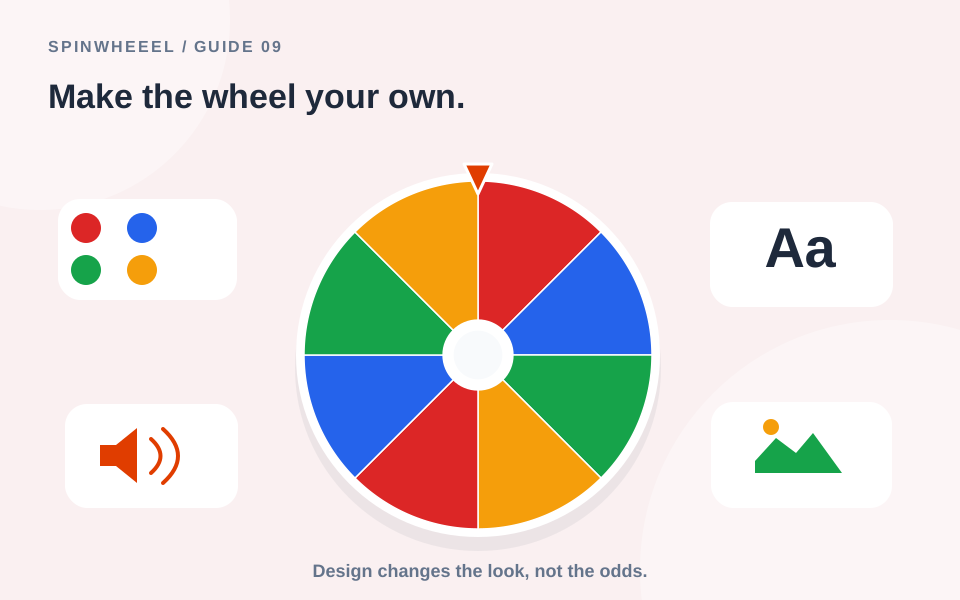
Open Settings to adjust the spin duration and winner-removal option. For a quick personal choice, a short spin is usually enough. For a small group, let the animation finish before turning the screen toward the winner or announcing the result.
Turn sounds off for quiet spaces. Sound availability depends on browser permissions and device state, so do not make an important announcement depend on hearing a chime. The visible result and Results tab remain available without audio.
Focus Mode and Screen Orientation
Focus mode hides the editor and surrounding page to give the wheel more room. Use its exit control to return. Some browsers can also enter native fullscreen; where that is unavailable, the page still provides its own focused view. Turning the phone sideways may help with a particular display, but check the layout before presenting.
Save the Wheel on iPhone or Move It Elsewhere
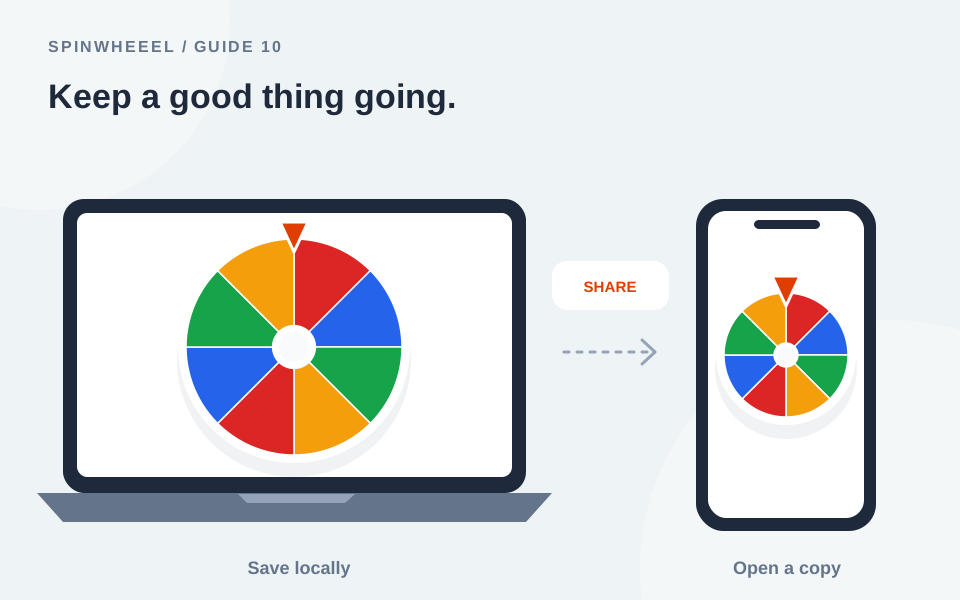
Save wheel stores a named copy in this browser on this device. It is not an account-based cloud save. Opening the same site on your laptop or in another phone browser does not automatically retrieve that list.
To move the setup, create a share link or export a wheel file. Share links include labels and weights, so check their contents before sending them. They do not include live results or your optional center image. See how saving and sharing differ for the full explanation.
Add a Convenient Home Screen Shortcut
In Safari, open the sharing menu and look for Add to Home Screen. The exact menu layout depends on your version and settings. Apple provides current instructions for adding a website icon. A shortcut is a convenient way back to the site; it is not a promise of offline operation or cloud synchronization.
Prepare Your iPhone Wheel Before a Group Activity
For a quiz night or small meeting, prepare the roster before people gather. Keep one name per line in a note, paste it into the wheel, and compare the count with your guest list. Correct spelling while you have time to inspect it. A phone keyboard can make a missing line or an accidental joined label easy to overlook.
Choose a winner display that you can comfortably read at arm's length, then try it with sample entries. Test the same orientation you expect to use during the activity. If you plan to show the result to a group, consider whether passing the phone around will be clearer than asking everyone to read small labels from a distance.
Keep a Simple Recovery Copy
Export the prepared wheel and keep the original names in your note. These copies serve different purposes: the wheel file preserves the configuration, while the note makes it easy to inspect and correct the roster. Confirm that you can find the downloaded file before relying on it during a busy event.
If a notification interrupts a spin, return to the page and check the visible result and Results tab before tapping Spin again. A second tap after the first draw finishes starts another selection. When the activity ends, export any results you need and restore your complete saved roster before beginning a fresh round with the same group.
QUICK ANSWERS
Troubleshoot a Spin Wheel on iPhone
The Sound Is Not Playing
Check the sound control on the wheel and your device volume. Tap a control directly to begin a user interaction, then try a short sample spin. If audio remains unavailable, use the visible winner display rather than repeatedly changing your real draw.
My Saved Wheel Is Missing
Check whether you are in the same browser and browsing mode. Clearing site data can remove local wheels. An exported backup or a previously copied share link can restore a setup, but the website cannot recover browser storage that has been deleted.
Can I Use the Wheel Without Internet?
This version is designed to be loaded online. A currently loaded page may keep working for some actions, but offline loading and installation are not guaranteed. For a scheduled event, check the connection and prepare a separate copy of your list.
Put it into practice.
Start with a few sample entries, check your settings, and make the wheel your own.
Open the wheel